
Getting Started
Arboris is a financial analysis workspace for fractional CFOs. The core loop is simple: connect a client’s QuickBooks data, surface material changes, analyze the financials with source-grounded AI, export a branded financial review, then move to the next client from Command Center.
First review path
From firm signup to client-ready PDF
Use this walkthrough when you want to prove the full Arboris loop with one client before rolling it across the rest of your portfolio.
- Active provider
- QuickBooks Online
- Primary workspace
- Command Center
- Output
- Full Financial Review PDF
Before you begin
Section titled “Before you begin”You need:
- An Arboris account.
- Access to the QuickBooks Online company you want to review.
- A client you are ready to analyze. Arboris creates your own firm as the first client automatically, and you can add external clients from Command Center.
The current release supports QuickBooks as the active accounting connection. QuickBooks active Xero and CSV import are visible as coming soon options and are not active connection paths. Xero coming soon

Create your firm
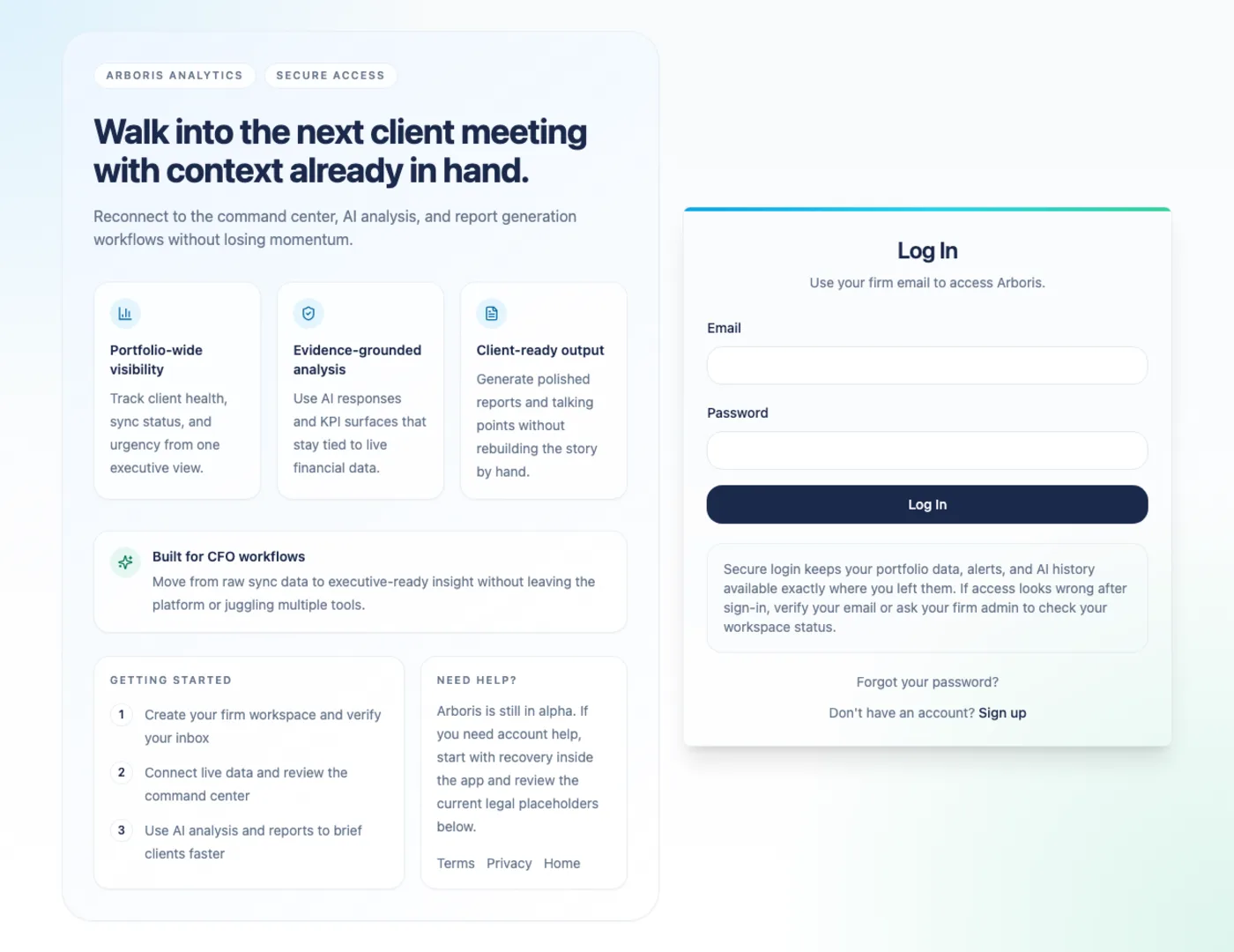
Section titled “Create your firm”- Go to app.arborisanalytics.com/register.
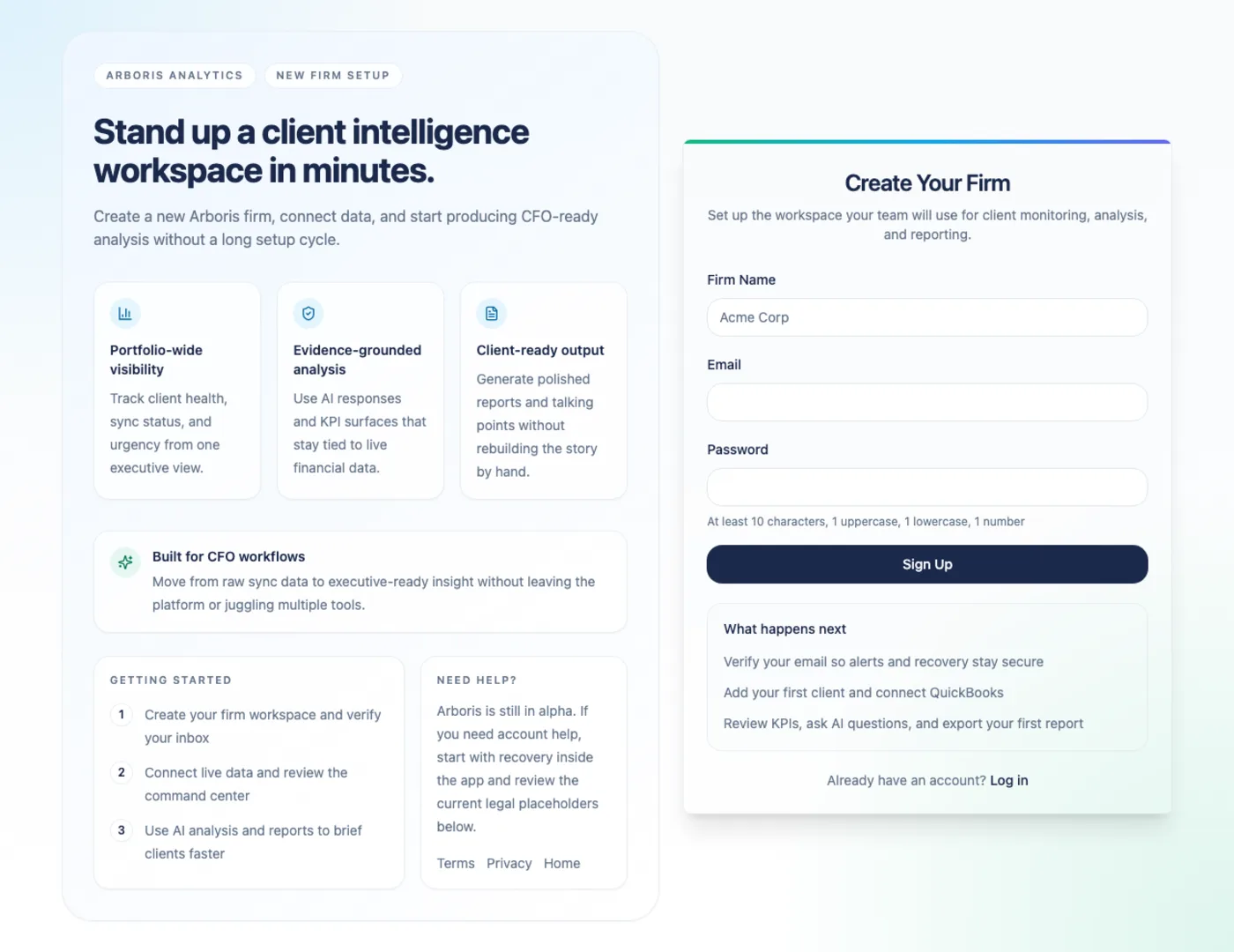
- Enter your firm name, email address, and password.
- Submit the form and wait for Arboris to create your firm workspace.
- Open the email verification message when it arrives and verify your email.
After signup, Arboris opens Command Center with one client card for your own firm. That self-client uses the same workspace as every external client, so you can analyze your own practice or use it as a first walkthrough.
Complete the activation path
Section titled “Complete the activation path”The in-app activation rail guides the first run:
- Verify your email.This activates the account created during signup.
- Open your first client workspace.Your firm is created with a permanent self-client, and external clients use the same workspace model.
- Connect QuickBooks from Integrations.QuickBooks Online is the active accounting provider in the current release.
- Run or wait for the first sync.Synced source data powers Analysis, AI evidence, anomalies, and report content.
- Review Analysis.Check KPI coverage, trend movement, and any anomaly context before writing the client narrative.
- Export the Full Financial Review PDF.Review AI-generated advisory content, confidence tags, and evidence citations before sending it to a client.
You can follow the rail or work directly from Command Center and each client workspace.
Add a client
Section titled “Add a client”- Open Command Center.
- Choose the add-client action.
- Enter the client’s business name.
- Optionally select an industry from the industry list.
- Create the client.
Client names must be unique inside your firm. Your self-client is permanent and cannot be deleted. External clients can be updated or removed according to the product controls available in Command Center.
Connect QuickBooks
Section titled “Connect QuickBooks”- Open the client’s workspace.
- Go to Integrations.
- Choose Connect QuickBooks.
- Authorize Arboris in the Intuit flow.
- Return to Arboris and monitor the sync state.
On sync, Arboris pulls QuickBooks financial reports, transaction activity, chart of accounts, and supporting source data needed for Analysis, AI evidence, anomalies, and reports. QuickBooks is the authoritative source for financial statement values in the current product.
Review the workspace
Section titled “Review the workspace”Each client workspace has five main tabs:
| Tab | Use it for |
|---|---|
| Analysis | Review KPIs, trends, cost breakdowns, data coverage, and anomalies. |
| AI Chat | Ask bounded financial questions and inspect evidence and confidence tags. |
| Integrations | Connect QuickBooks, review sync history, sync manually, reconnect, disconnect, or purge synced source data. |
| Reports | Select report sections and export a branded Full Financial Review PDF. |
| Client Review | Run a period-specific Review Run with readiness checks, a Review Brief, a Report Draft, and reviewed-period tracking. |
Start with Analysis after the first successful sync. If a value cannot be computed safely, Arboris displays an em dash instead of inventing a number. In Arboris, unknown is different from verified zero.
Choose Client Review for the guided Review Run workflow when you need period tracking and readiness checks around the report.
Export the first review
Section titled “Export the first review”- Open the client’s Reports tab.
- Select the sections you want in the report.
- Generate the Full Financial Review PDF.
- Review the AI-generated advisory section, including confidence tags and evidence citations, before sending the report to a client.
The default report package is built for a CFO review: profitability summary, cost breakdown, revenue trends, anomaly report, and AI financial narrative. Transaction detail can be added when the client needs a deeper appendix.