
Integrations
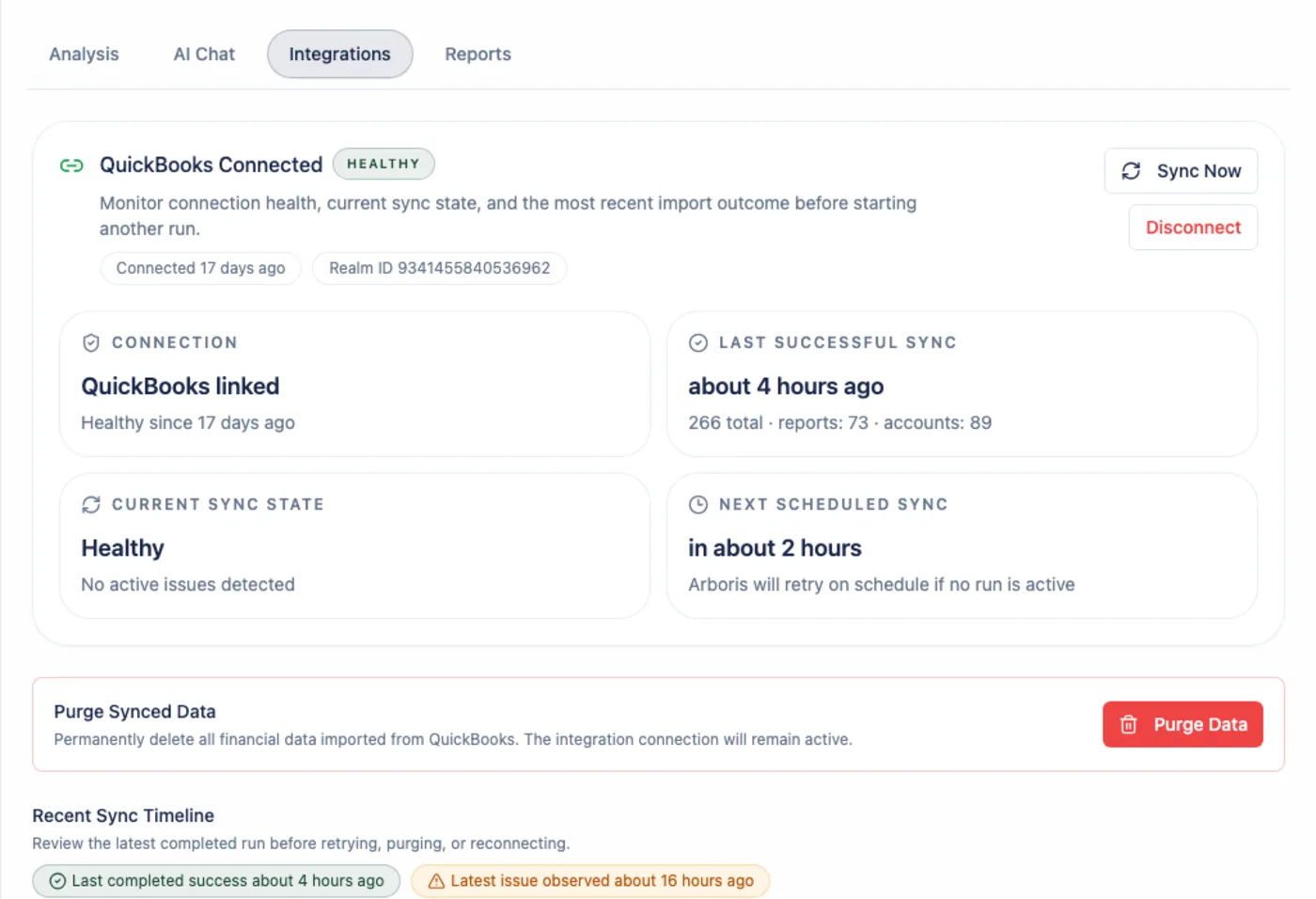
The Integrations tab controls the accounting connection for a single client. In the current release, QuickBooks is the active provider. Xero and CSV import are shown as coming soon and are not clickable connection paths.
Provider picker
Section titled “Provider picker”When no provider is connected, the workspace shows provider cards:
| Provider | Status |
|---|---|
| QuickBooks | Active connection path. |
| Xero | Coming soon. |
| CSV Upload | Coming soon. |
Each client can have one integration at a time. After QuickBooks is connected, the provider picker is replaced by the connected-state view.
Connection states
Section titled “Connection states”| State | Meaning | What to do |
|---|---|---|
| No integration | The client has never connected a provider. | Connect QuickBooks. |
| Active | QuickBooks is connected and syncs are available. | Review sync freshness and continue to Analysis. |
| Disconnected | Tokens were revoked, access was disconnected, or the user disconnected intentionally. | Reconnect QuickBooks if the client should continue syncing. |
Disconnecting stops future syncs but preserves historical financial data for continued review. Purging removes synced QuickBooks source data for that client and should be used only when you intentionally want to remove that data from Arboris.
Sync history
Section titled “Sync history”After QuickBooks is connected, Integrations shows recent sync runs with status, timing, record counts, and error details when available. Use this history to understand whether Analysis is based on fresh data, stale data, a failed sync, or partial coverage.
Auto-sync runs every 6 hours. You can also start a manual sync when you need the latest completed accounting period or have changed source data in QuickBooks.
Data freshness
Section titled “Data freshness”Freshness matters because Command Center, Analysis, AI Chat, and Reports all depend on synced source data.
| Freshness signal | Meaning |
|---|---|
| Recent successful sync | The workspace is ready for normal review, assuming required reports are present. |
| Sync running | Wait for completion before relying on the newest data. |
| Failed sync | Review the error, retry when appropriate, or reconnect if authorization was lost. |
| Stale sync | Open Integrations and sync or reconnect before preparing a client-facing report. |
Command Center also uses sync freshness in urgency scoring.
Reconnect, disconnect, and purge
Section titled “Reconnect, disconnect, and purge”Use Reconnect when QuickBooks authorization was revoked or credentials changed. Reconnection restores the existing client integration rather than changing the client workspace.
Use Disconnect when you want to stop future QuickBooks syncs while keeping historical analysis available.
Use Purge when you intentionally want to remove synced QuickBooks source data for the client. After a purge, reconnect and sync again before expecting Analysis, AI Chat, or Reports to use current source data.
Troubleshooting checklist
Section titled “Troubleshooting checklist”- Confirm the client is the intended Arboris workspace.
- Confirm QuickBooks is the selected provider.
- Check the latest sync status and error message.
- If the sync is stale, run a manual sync.
- If access was revoked or authorization fails, reconnect QuickBooks.
- If KPIs are suppressed after a successful sync, open Analysis and read the source coverage and suppression reasons.
Suppressed Analysis values after a successful sync do not always mean the integration failed. They can mean a required QuickBooks report, comparison period, or balance-sheet value is not available for the selected period.