
Command Center
Command Center is the firm-level home screen after login. It is built for the fractional CFO’s weekly portfolio review: open Arboris, see which clients need attention, and move directly into analysis, AI, integrations, or report export.
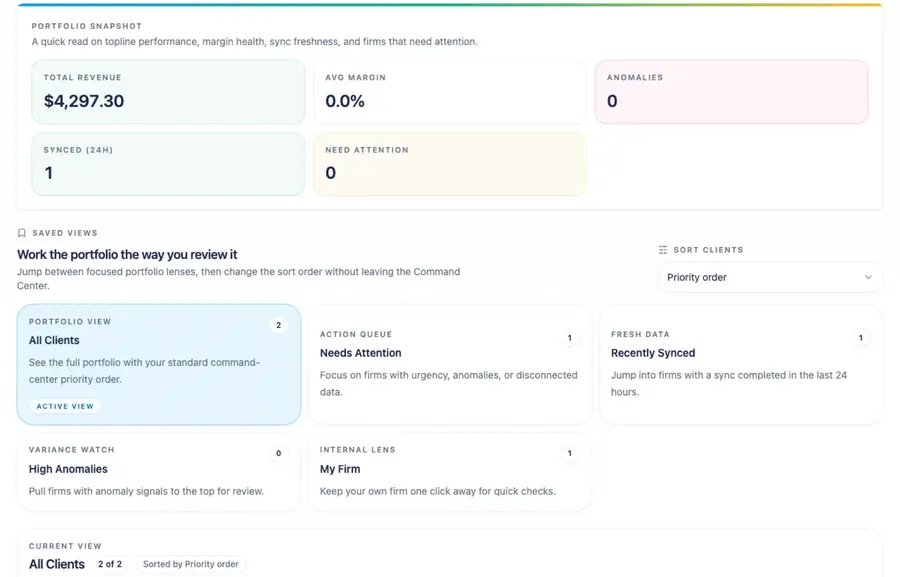
What Command Center shows
Section titled “What Command Center shows”Each client card gives a fast read on review readiness:
| Signal | What it helps you decide |
|---|---|
| Urgency color | Whether the client needs immediate attention, watchful review, or routine handling. |
| Client name and industry | Which client and business context you are reviewing. |
| Integration status | Whether QuickBooks is connected or disconnected. |
| Last sync | How fresh the source data is. |
| Revenue and gross margin | Latest available financial statement signals. |
| Anomalies | Count and severity of unresolved items. |
| Report freshness | Whether the client has had a recent review export. |
Your self-client is pinned first so your own firm is always visible. Other clients are ordered by urgency, then by sync availability.
Saved views
Section titled “Saved views”Use saved views to narrow the portfolio:
| View | Use it when |
|---|---|
| All Clients | You want the complete firm portfolio. |
| Needs Attention | You want clients with red or yellow signals first. |
| Recently Synced | You want to review fresh QuickBooks data. |
| High Anomalies | You want clients with the most serious anomaly signals. |
| My Firm | You want to open your self-client. |
Saved view and sort state can be shared through the Command Center URL when available in the app.
Urgency reference
Section titled “Urgency reference”Arboris collects all applicable reasons for a client, then assigns the highest urgency color.
| Color | Meaning | Typical reasons |
|---|---|---|
| Red | Immediate review recommended. | Failed sync after retries, QuickBooks disconnected before a successful sync, data stale more than 14 days, high-severity anomaly, revenue down more than 25% month over month, or gross margin down more than 10 percentage points. |
| Yellow | Watch or review soon. | Data stale 7 to 14 days, medium-severity anomaly, revenue down 10% to 25%, gross margin down 5 to 10 percentage points, or no report exported in 30 or more days. |
| Green | Routine review. | Fresh data, no significant unresolved anomalies, no major trend warnings, and regular report activity. |
Urgency depends on available source data. Newly added clients without a QuickBooks sync should be treated as setup work, not as a financial conclusion.
Daily triage workflow
Section titled “Daily triage workflow”- Open Needs Attention.
- Start with red clients.
- Read the urgency reason before opening the workspace.
- Choose the quick action that matches the blocker:
- Integrations for disconnected, failed, or stale syncs.
- Analysis for KPI, trend, data coverage, or anomaly review.
- Ask AI for source-grounded explanation and client-facing talking points.
- Reports for report export or report freshness.
- Return to Command Center and move to the next client.
The goal is not to inspect every client equally. The goal is to spend your review time where the financial or data-readiness signals say it matters.
Client management
Section titled “Client management”From Command Center you can add clients, edit client name or industry, and open the client’s workspace. Client names must be unique inside your firm. Your self-client is created at signup and is permanent.
When you add a new client, open its workspace and connect QuickBooks from the Integrations tab before expecting Analysis, AI Chat, or Reports to produce financial output.
Report readiness
Section titled “Report readiness”Command Center also supports the review loop. A client is ready for a client-facing review only when the accounting connection is active, the latest sync is fresh enough for the period, required QuickBooks reports are present, and key data gaps are understood. If a client is blocked, use the card reason and workspace tabs to resolve the blocker before exporting a report.